.%20Same%20paths%20and%20fill;%20only%20the%20viewBox%20is%20cropped%20to%20the%20file's%20own%20clip%20rect%20so%20the%20bar%20sets%20the%20clear%20space.%20--%3e%3csvg%20width='480.615'%20height='97.3693'%20viewBox='97%2078%20480.615%2097.3693'%20fill='none'%20xmlns='http://www.w3.org/2000/svg'%3e%3cg%20clip-path='url(%23clip0_1709_25672)'%3e%3cpath%20d='M507.64%20157.772C497.197%20157.772%20490.907%20152.963%20490.907%20141.818V78H503.605V97.3565H530.187L547.394%20137.712L562.584%2097.3565H577.062L544.784%20175.369H530.424L540.63%20151.907L521.406%20108.501H503.605V139.941C503.605%20144.751%20505.741%20146.628%20510.725%20146.628H522.236V157.772H507.64Z'%20fill='%23121516'/%3e%3cpath%20d='M467.845%20157.772V97.3565H480.543V157.772H467.845ZM467.489%2091.139V78H480.899V91.139H467.489Z'%20fill='%23121516'/%3e%3cpath%20d='M404.356%20157.772L425.005%20126.215L405.899%2097.3566H421.089L433.549%20118.004L446.128%2097.3566H461.318L442.212%20126.215L462.861%20157.772H447.671L433.549%20134.779L419.546%20157.772H404.356Z'%20fill='%23121516'/%3e%3cpath%20d='M377.834%20159.532C359.915%20159.532%20348.285%20146.745%20348.285%20127.271C348.285%20108.501%20360.034%2095.5968%20377.122%2095.5968C394.329%2095.5968%20405.84%20107.445%20405.84%20125.16C405.84%20127.858%20405.722%20129.852%20405.366%20131.494H361.458C362.17%20142.874%20367.747%20148.974%20377.953%20148.974C385.31%20148.974%20390.176%20145.689%20391.956%20139.237H404.891C402.043%20151.907%20391.837%20159.532%20377.834%20159.532ZM361.458%20121.64H392.905C392.193%20111.317%20386.853%20106.155%20377.122%20106.155C367.984%20106.155%20362.288%20111.903%20361.458%20121.64Z'%20fill='%23121516'/%3e%3cpath%20d='M328.431%20157.772V78H341.128V157.772H328.431Z'%20fill='%23121516'/%3e%3cpath%20d='M263.88%20175.369V97.3565H276.578V103.457C280.375%2098.4123%20287.021%2095.5968%20294.853%2095.5968C311.111%2095.5968%20321.316%20107.915%20321.316%20127.506C321.316%20147.097%20311.111%20159.532%20294.853%20159.532C287.021%20159.532%20280.375%20156.717%20276.578%20151.672V175.369H263.88ZM292.123%20148.035C302.685%20148.035%20308.263%20140.997%20308.263%20127.506C308.263%20114.132%20302.685%20107.093%20292.123%20107.093C281.443%20107.093%20275.866%20114.132%20275.866%20127.506C275.866%20140.997%20281.443%20148.035%20292.123%20148.035Z'%20fill='%23121516'/%3e%3cpath%20d='M224.479%20157.772V97.3566H237.176V103.809C239.55%2099.7028%20244.178%2097.3566%20249.874%2097.3566H258.181V109.322H249.874C241.092%20109.322%20237.176%20113.546%20237.176%20122.931V157.772H224.479Z'%20fill='%23121516'/%3e%3cpath%20d='M188.82%20159.532C170.9%20159.532%20159.271%20146.745%20159.271%20127.271C159.271%20108.501%20171.019%2095.5968%20188.107%2095.5968C205.315%2095.5968%20216.825%20107.445%20216.825%20125.16C216.825%20127.858%20216.706%20129.852%20216.35%20131.494H172.443C173.155%20142.874%20178.733%20148.974%20188.938%20148.974C196.296%20148.974%20201.161%20145.689%20202.941%20139.237H215.876C213.028%20151.907%20202.823%20159.532%20188.82%20159.532ZM172.443%20121.64H203.891C203.179%20111.317%20197.838%20106.155%20188.107%20106.155C178.97%20106.155%20173.274%20111.903%20172.443%20121.64Z'%20fill='%23121516'/%3e%3cpath%20d='M97%20175.369V97.3565H109.698V103.457C113.495%2098.4123%20120.141%2095.5968%20127.973%2095.5968C144.231%2095.5968%20154.436%20107.915%20154.436%20127.506C154.436%20147.097%20144.231%20159.532%20127.973%20159.532C120.141%20159.532%20113.495%20156.717%20109.698%20151.672V175.369H97ZM125.244%20148.035C135.805%20148.035%20141.383%20140.997%20141.383%20127.506C141.383%20114.132%20135.805%20107.093%20125.244%20107.093C114.563%20107.093%20108.986%20114.132%20108.986%20127.506C108.986%20140.997%20114.563%20148.035%20125.244%20148.035Z'%20fill='%23121516'/%3e%3c/g%3e%3cdefs%3e%3cclipPath%20id='clip0_1709_25672'%3e%3crect%20width='480.615'%20height='97.3693'%20fill='white'%20transform='translate(97%2078)'/%3e%3c/clipPath%3e%3c/defs%3e%3c/svg%3e)
AI in the workplace: A practical guide for knowledge workers
Learn how to use AI in the workplace for 10 recurring tasks, with ready-to-use prompts, safety tips, and a simple pilot.
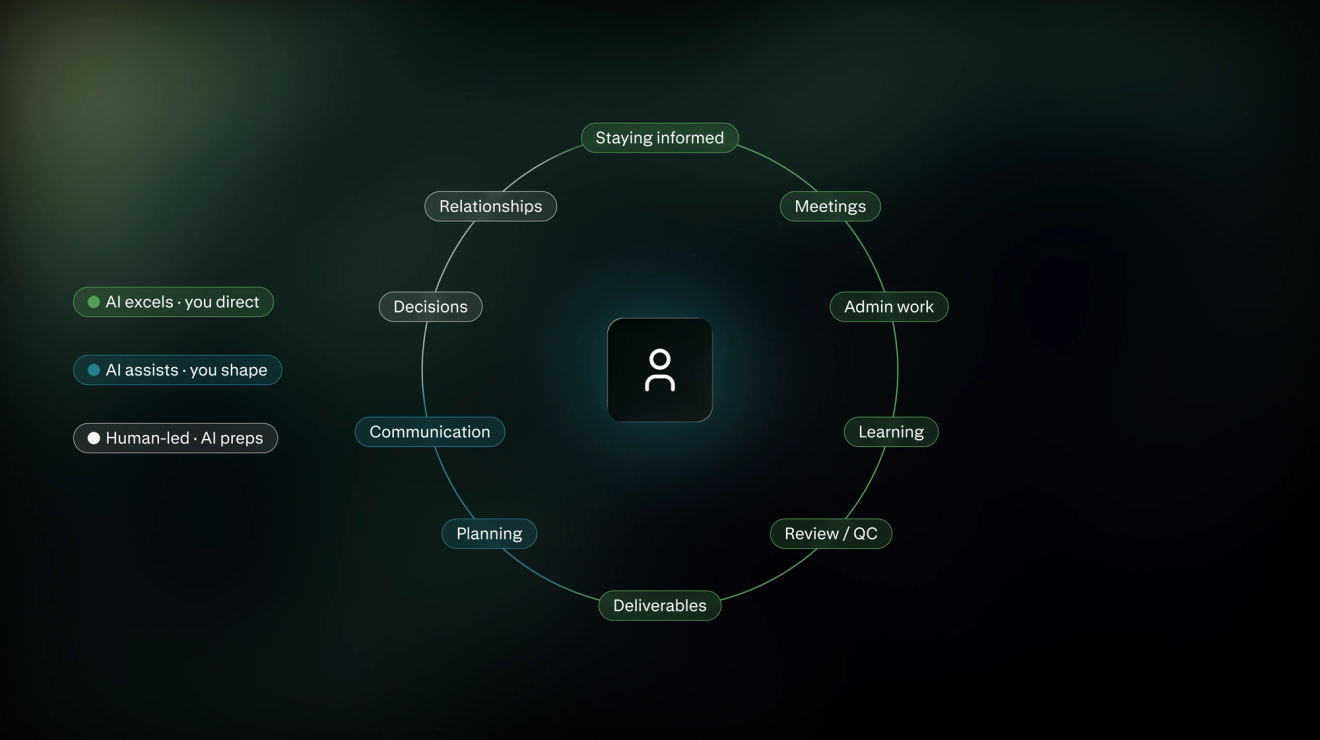
This article breaks down how knowledge workers can use AI on the recurring tasks that eat time every week, not just for one-off questions and writing tasks. It includes ready-to-use prompts, guidance for using AI safely, and steps for building AI into your workflows quickly and simply.
How to use AI in the workplace
Most knowledge work comes with operational overhead that isn't in the job description: meetings, admin, staying informed, managing relationships.
These tasks are often the best place to start using AI, because the output is easy to check and the stakes of getting it wrong are low.
Below are 10 of those tasks, and how to prompt AI to help with each.
Note: Some AI tools need source material attached or pasted directly. Others can pull it themselves from a connected inbox, drive, or open browser tabs. The prompts below work either way.
1) Staying informed
New articles and updated notes pile up on the same topic, and it can be a real challenge to keep up with what’s happening.
AI tools can help you:
- Reconcile scattered sources into one answer
- Catch contradictions or version drift across documents
- Summarise what has changed since the last update
- Flag where sources disagree
2) Communication
A status update, a recap, a check-in: most work communication repeats the same few shapes, which makes it easy for AI to write a decent first draft.
AI tools can help you:
- Draft emails, updates, or documents from bullet points
- Adjust tone or length for a different audience
- Rewrite the same update for different readers
- Catch unclear phrasing before you send
3) Meetings
AI can help turn a conversation into a tangible log of next actions and decisions.
AI tools can help you:
- Pull action items and owners out of notes or a transcript
- Draft the recap right after a call
- Catch commitments nobody was actually assigned
- Prep an agenda from the last meeting's open items
4) Planning and prioritisation
AI can make it easier to organise a complicated weekly schedule, juggle multiple commitments, and estimate time more accurately.
AI tools can help you:
- Turn competing deadlines into an order of operations
- Flag scheduling conflicts before they become a problem
- Separate what's genuinely urgent from what feels urgent
- Sanity-check whether a plan is realistic
5) Analysis and decision-making
AI isn’t a replacement for human judgment, but it’s good at assembling, sorting, and comparing complex information to make the decision process easier.
AI tools can help you:
- Bring together the relevant information to make a decision
- Surface where Reasoning agrees or disagrees
- Stress-test an assumption before you build on it
- Organise the factors at play
6) Producing deliverables
Today’s more sophisticated AI tools can go beyond simply answering questions to create slides, reports, documents or spreadsheets.
AI tools can help you:
- Turn research or notes into a first-draft deck, spreadsheet, or report
- Go straight from raw material to a formatted document
- Structure a deliverable before you spend time on polish
- Pull sources together as you build it
7) Administrative overhead
AI can reduce tedious manual tasks, such as entering or categorising data, labelling files, or copy-pasting information from one tool to another automatically.
AI tools can help you:
- Categorise expenses and flag duplicates or missing entries
- Draft routine emails
- Turn a rough note into something submittable
- Fill out repetitive forms from information you already have
8) Reviewing and quality control
AI is useful for catching inconsistencies within a single document, and reconciling claims across multiple sources, like flagging where a draft drifts from the style guide.
AI tools can help you:
- Catch inconsistent numbers or claims across a document
- Flag unclear phrasing before something ships
- Check a draft against a checklist or style guide
- Spot gaps between an early section and a later one
9) Learning
Getting up to speed on an unfamiliar topic used to mean a slow read or a favour from a busy colleague.
AI tools can help you:
- Get a working understanding of an unfamiliar tool, process, or topic fast
- Prep questions you should be ready to answer
- Explain a concept at the level you need
- Fill in background before talking to someone more expert than you
10) Managing relationships
Context scattered across old emails and notes can be hard to reconstruct on short notice, right before a call.
AI tools can help you:
- Pull together context before a conversation: what was discussed, promised, or left open
- Prep a briefing before a client or stakeholder call
- Track open items across an ongoing relationship
- Draft a check-in that references real prior context
How to get started with AI without irritating your IT teams
Every prompt above assumes the tool has access to real, sometimes sensitive, company information, so a few habits up front keep that access from becoming a problem later.
- Check for an approved tools list before you start. Most companies post one somewhere: an IT wiki, a security portal, an onboarding doc. If you can't find one, ask directly rather than assume there isn't one.
- Log in through your company's SSO, not a personal account. A personal login doesn't inherit your company's data controls, audit trail, or offboarding process, so the work stays outside IT's visibility even when the work itself is company business.
- Know your company's data tiers, not just "sensitive versus not." Most companies split data into more than two categories, for example public, internal, confidential, and restricted, and what's fine to paste into one tool may not be fine for another. Check with IT or security if the tiers aren't documented somewhere obvious.
- Strip identifiers before you paste, when you can. Swap real names, account numbers, and client details for placeholders like {client_name} before pasting into a tool that hasn't been formally approved.
- Turn off model-training toggles. Most AI tools have a setting, often labeled something like "improve the model" or "use my data for training," that opts your inputs into training data by default. Check the privacy or settings panel and turn it off unless the tool has been specifically approved without that concern.
- Review what a tool can access before connecting it. If it books things, sends things, or touches your inbox, check what permissions it's requesting, and revoke access for anything you're not actively using.
- Ask if you don't know whether something's approved. A quick message to IT or security is usually preferable to finding out after the fact that a tool wasn't cleared.
How to use AI in the workplace more effectively
Most knowledge workers already use AI casually: a one-off question, a quick email draft, copy the result, done. Treating a task as a two-week pilot, not a one-time question, is what turns that casual use into meaningful time savings.
Here’s how to start:
1) Track a full week before making any changes
For five working days, log every repetitive task, how long it takes, and how tedious it feels. There are multiple time-tracking tools available, but a running note works fine: "Monday, 20 min, sorted receipts, mildly annoying." By Friday, a pattern usually stands out on its own.
2) Pick one task
Review the notes and choose which time-consuming, tedious task to automate first.
There are a few factors to consider:
- Does the task happen multiple times a week?
- Is the process relatively consistent every time?
- Is it quick to check the output?
- Does it depend on judgment calls that vary by situation?
- Would an error be easy to catch and fix?
- Is the source data complete and reliable?
A weekly status update or a recurring expense report fits. A once-a-quarter board deck doesn't. The stakes and the review time are both too high for a first pilot.
3) Define what "good" looks like before testing it
Write a sentence describing a correct or usable output, decided before seeing what the AI produces.
Pull three real examples of the output done manually (three status updates, three expense reports), and write down what they have in common: length, structure, level of detail.
Then ask what would make it unusable. Sometimes it's easier to define good by naming the failure. Include the opposite of each failure in the definition of a good output.
For example, for a status update, that might be: "Covers what shipped and what's blocked, in two paragraphs, with minimal rewriting needed."
For an expense report, it might be: "Every line has a category, and duplicates are flagged."
4) Build and test the prompt
Start with a plain description of the task and the "good" definition from step 3, then run it against two or three real instances.
After each run, compare the output against that definition and note what's off: missing a section, too long, wrong tone. Add a line to the prompt addressing that specific gap, then run it again.
Stop once the output needs only minor editing, not rewriting. Save the final version somewhere easy to find again: a pinned doc, a notes app, or a shared prompt library, for instance.
5) Decide on one quality control check
Pick one repeatable thing to verify manually. For an expense report, that might mean comparing the category totals against the raw export before submitting it. Do that same check on every output for two weeks, even once it starts to feel reliable.
6) After two weeks, compare against the baseline.
For each instance, track how long the task took start to finish, including the check step, and how it compares to the time logged in step 1. At the end of two weeks, add it up to decide whether it’s worth keeping the Automation as is. If not, adjust and retry, or drop it and pick a different task.
Putting this into practice
Pick the task that eats the most time and shows up most consistently, run it through the pilot steps, and note how much time or effort AI saves.
Perplexity Computer gives a knowledge worker more capacity without adding hours to the day. It connects to the tools already in daily use, including Gmail, Outlook, Google Drive, Notion, and Slack, and can pull the relevant material, draft the output, and flag anything that needs a second look before it goes out.
Try Perplexity Computer for your daily work.
FAQs
What is AI in the workplace?
It's the use of AI tools, like connected assistants and chatbots, to help with the recurring parts of a job: staying informed, communicating, planning, reviewing, and administrative work, in addition to the one-off questions most people already ask.
What are examples of AI in the workplace?
Pulling action items out of a meeting transcript, turning raw notes into a status update, categorising an expense report, building a source-backed presentation outline, and prepping for a call using past context are five common ones.
What are the benefits of AI in the workplace?
The clearest benefit is time back on tasks that follow a predictable pattern: summarising, drafting, categorising, and reviewing work that takes real time to do by hand but doesn't require deep judgment.
What are the pros and cons of AI in the workplace?
The upside is faster first drafts and less time on repetitive tasks. The downside shows up when the check step gets skipped: an unverified summary treated as fact, a draft sent without review, or sensitive data pasted into a tool that was never approved for it.
How do you use AI in the workplace?
Start with one recurring task, track how it's currently done for a week, define what a good output looks like, test a prompt against a few real instances, and set one fixed check to run on every output during a two-week pilot.
What are the risks of AI in the workplace?
The main risks are treating AI output as verified when it isn't, sending sensitive data through an unapproved tool, and letting an AI summary substitute for a decision, an approval, or a relationship judgment that still needs a person.
Is AI going to replace jobs?
For most knowledge work, AI is replacing specific repetitive tasks inside a role rather than the role itself. The tasks in this guide, communication, admin, first drafts, are the ones most likely to shift, while judgment, accountability, and relationship-building stay with the person doing the job.