

What are Scheduled Tasks in Computer?
Scheduled Tasks let Perplexity Computer run recurring work for you in the background — monitoring, reports, alerts, inbox checks, competitive tracking, daily briefings, and more — on a schedule you set. Computer runs each task autonomously in the cloud, so your laptop doesn’t need to be open. When something noteworthy happens, Computer sends you a notification and saves the full result to the task’s thread.
Scheduled Tasks live inside Computer at Computer → Tasks (perplexity.ai/computer/tasks). They replace the older Perplexity Tasks experience and are built on Computer’s agent system, which means a scheduled task can use the same tools, connectors, and subagents that you’d use in a one-off Computer conversation.
Note: Scheduled Tasks in Computer are different from one-time reminders. If you just want Computer to do something once at a specific time (“remind me at 4pm”, “send this email tomorrow at 9am”), Computer handles that as a one-time wait, not a recurring task.
Creating a Scheduled Task
You don’t fill out a fixed form. You describe what you want in plain language inside Computer, and Computer proposes a schedule for your confirmation.
Open Computer from the left sidebar (or go to
perplexity.ai/computer/tasks).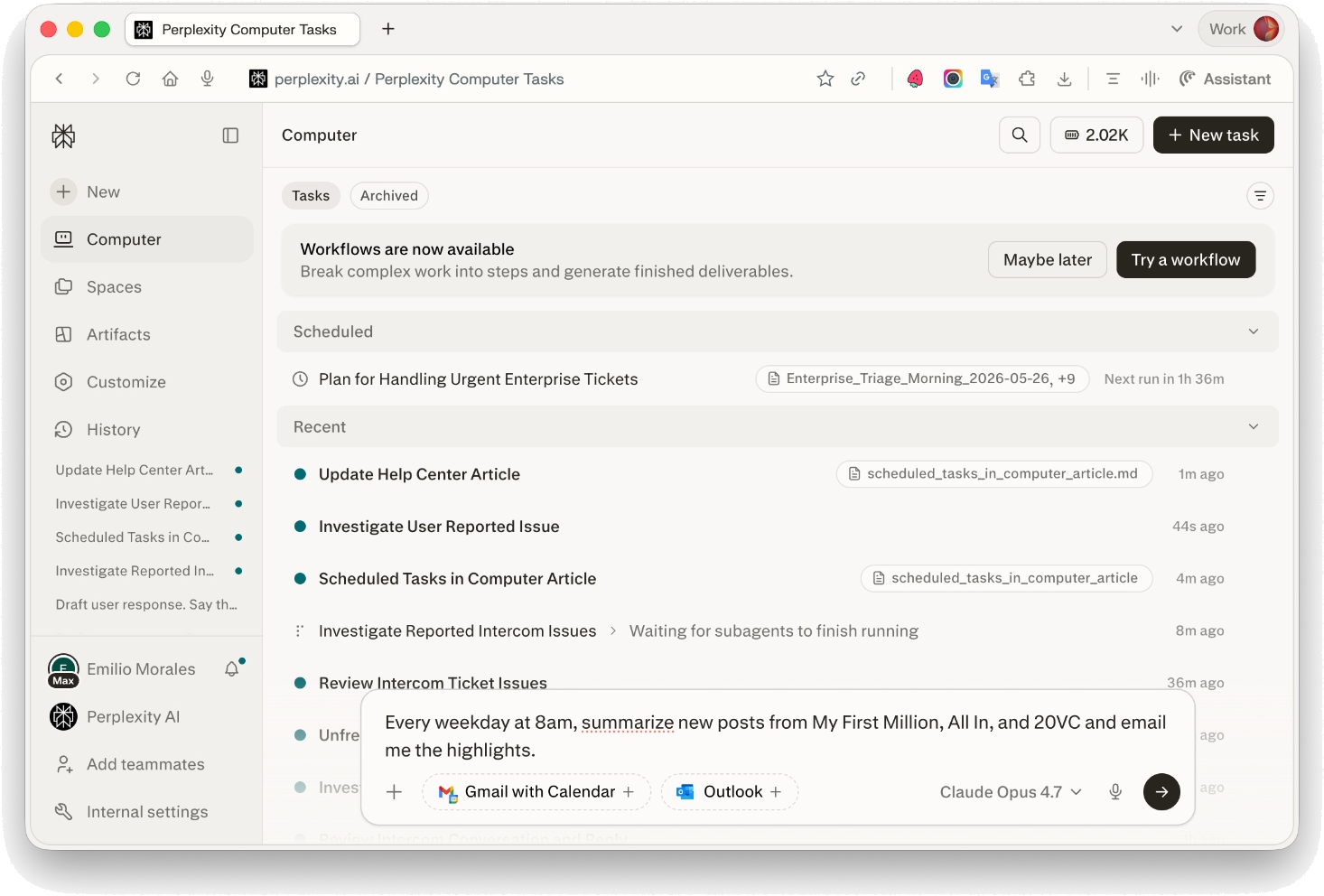
In the input box, describe the recurring task and the cadence. For example:
“Every weekday at 8am, summarize new posts from My First Million, All In, and 20VC and email me the highlights.”
“Check my Gmail every hour for replies from investors and notify me when one arrives.”
“Every Monday at 9am, pull our sales pipeline from Salesforce and post a summary to #revenue in Slack.”

Computer will confirm the schedule, what the task will do, and remind you that each run uses credits. Approve to create the task.
Your task now appears under Scheduled on the Computer dashboard, with the next run time shown.
You can also create a scheduled task from inside any existing Computer conversation — just ask Computer to “run this every morning” (or whatever cadence) and it will schedule the recurring version of that work.
Supported schedules
Scheduled Tasks support any recurring cadence as long as it runs no more often than once per hour. Common cadences:
Hourly
Daily (at a specific time)
Every weekday
Weekly (specific day + time)
Monthly
Custom recurring schedules
Computer automatically converts the time you give it (in your local timezone) into the underlying schedule, and shows you the next run time in your timezone on the dashboard.
Not supported as a Scheduled Task:
Sub-hourly cadences (more often than once per hour).
One-time actions — use a one-time reminder instead (“remind me once tomorrow at 9am”).
Background vs. attended tasks
Most scheduled tasks run in the background, meaning Computer spins up a fresh, isolated agent for each run with no prior conversation context. This is ideal for:
Monitoring (prices, news, mentions, inboxes)
Recurring reports and briefings
Alerts and notifications
Data collection and tracking
Some tasks need to run attended (with conversation context or richer tooling). Computer will pick this automatically when the task needs to:
Generate a document (PDF, Word, PowerPoint, Excel)
Drive a browser (book something, fill a form, log into a site)
Publish or update a hosted website
Build on context from the conversation that created it
If a background task gets stuck — for example, instructions are unclear or it needs your input — it will surface a Needs attention state on the dashboard and notify you instead of guessing.
Using connectors in Scheduled Tasks
Scheduled Tasks can use any connector you’ve linked to Computer (Gmail, Google Calendar, Slack, Notion, Linear, GitHub, Outlook, Microsoft Teams, Jira, Confluence, Asana, Salesforce, Stripe, Google Drive, OneDrive, SharePoint, Dropbox, Box, and more). Manage these from Computer → Connectors.
If a connector becomes disconnected or its authorization expires, Computer will surface a reconnect prompt the next time the task runs. After repeated failures on the same connector issue, Computer may stop the task so it doesn’t keep using credits while blocked — you’ll be notified and can recreate it once you’ve reconnected.
Notifications
When a scheduled task produces something new or noteworthy, Computer notifies you. Available channels:
In-app (default)
Mobile push (via the Perplexity iOS/Android app)
Web push
Email
Manage notification preferences under Settings → Notifications. Each notification deep-links straight to the task’s thread so you can review the full result and any artifacts.
If a run finds nothing new (for example, an hourly inbox check with no new replies), Computer stays quiet — you only get notified when there’s something worth your attention.
Managing your Scheduled Tasks
Open Computer → Tasks to see all your scheduled tasks, grouped by status (Scheduled, Needs attention, Completed). Click any task to open its detail page.
From the task detail page, or from inside the conversation that owns the task, you can:
See the next run time and recent run history
Review past results and notifications
Update the schedule or the instructions (“change this to every weekday at 7am instead”, “also include TechCrunch in the sources”)
Stop the task
Stopping a task removes it permanently. There is no separate paused state — if you want to bring a task back later, recreate it. You can also stop a task from the conversation’s right-hand context pane using the Stop task button.
Tasks from other conversations
Each Computer conversation can own up to 15 scheduled tasks. Tasks created in one conversation are managed from that conversation. To find and manage a task created elsewhere, go to Computer → Tasks for a unified view, or open the task’s URL directly at perplexity.ai/computer/tasks/<task-id>.
Credits and billing
Each time a scheduled task runs, it uses Computer credits — just like any other Computer work. A few things to keep in mind:
Computer will tell you the schedule and remind you that each run uses credits before creating the task.
If your account runs out of credits, or doesn’t have Computer access at the moment of a scheduled run, that run will be skipped, automatically retried up to a few times, and then resume on the normal schedule once credits are available.
Max and Enterprise Max plans include monthly complimentary credits for Computer tasks. See your plan details in Settings → Subscription.
To control spend, keep schedules at the lowest cadence that meets your need (hourly checks use more credits than daily ones), and stop tasks you no longer need.
Troubleshooting
My task didn’t run when I expected.
Background tasks may take a few minutes to start after their scheduled time. If a run was skipped, check the task’s detail page — common reasons are insufficient credits, an expired connector authorization, or the task hitting a “Needs attention” state.
I’m getting too many notifications.
Open the task and either lower the cadence (“change this to once a day instead of hourly”) or tell Computer to only notify on specific conditions (“only alert me if the price drops more than 5%”).
I can’t find a task I created.
Go to Computer → Tasks for a list across all your conversations. If the task was created in another conversation, you can also open it directly at perplexity.ai/computer/tasks/<task-id>.
I want to pause a task temporarily.
There’s no pause state today — stop the task and recreate it when you’re ready. We’re tracking this as a potential improvement.
Availability
Scheduled Tasks in Computer are available wherever Computer is available. Specific plan-tier limits on the number of active scheduled tasks are managed at the conversation level (up to 15 per conversation). For plan-level Computer access and credit allowances, see your subscription details.