
How do you create an internal search engine? A guide for website and workplace discovery
Learn how to set up internal search for your website or workplace in five steps, and when to build or buy a search engine.
An internal search engine searches a defined collection of content, whether that’s a website, an app, or a company’s connected files. You probably don't need to build the engine yourself—start with the search you already have.
Buy when you can name what's missing, and build only when nothing on the market fits and you have a team to keep it running.
Whichever you choose, the work comes down to the same five decisions: what gets indexed, what a query means, who sees what, what ranks first, and what to fix when a search fails.
What is an internal search?
An internal search engine finds content within a website, app, or company’s connected systems. The engine indexes that content, matches it against what a person types, and ranks the results.
Google does this for the public web. But with internal search, you choose what gets searched and how the results are ranked.
There are two types: internal search for websites and internal search for workplaces.
What is internal search for websites?
On websites, internal search is the search on your own site, also called on-site search or site search. A visitor types a query, and the engine returns matches from your pages and product catalog.
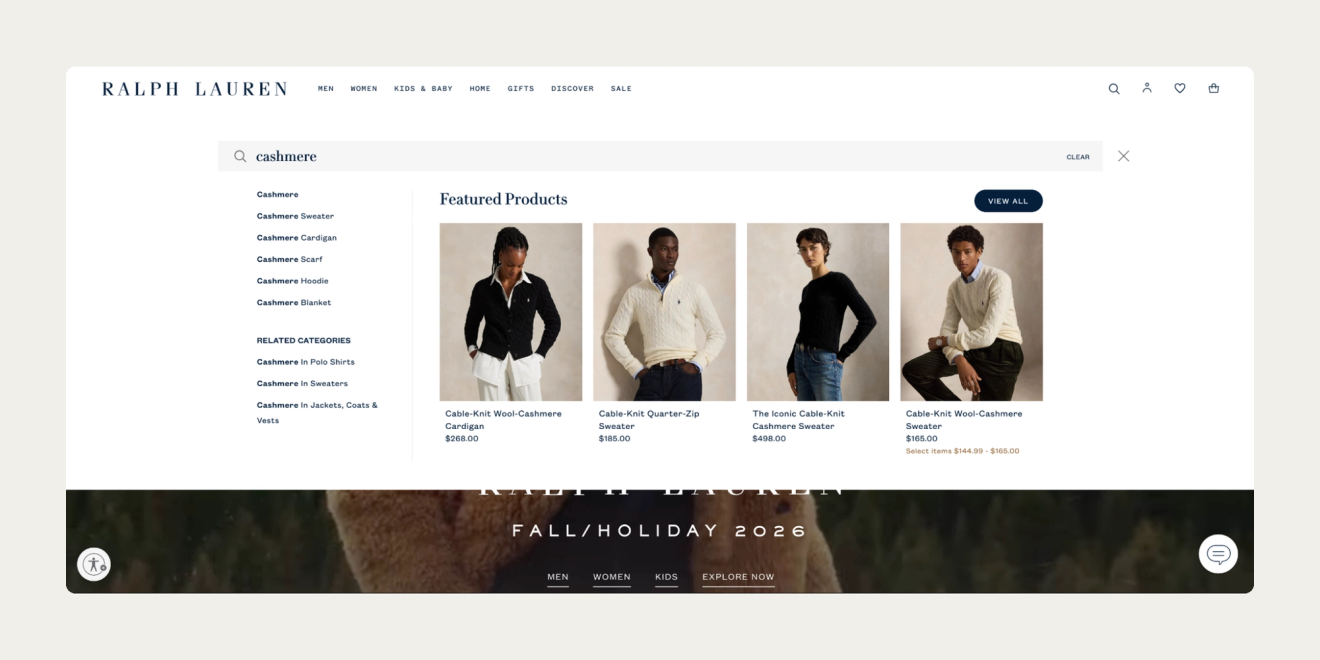
Go to Ralph Lauren and type “cashmere.” Before you press enter, the site has offered six ways to finish the thought, three categories to browse, and four products with prices.
The engine guessed what we might mean and ranked its guesses. Four products also get that prominent row. Which ones should fill it? That’s a merchandising question, and it happens inside the search box.
Ralph Lauren tucks its search behind a small icon. That’s not necessarily a mistake. In Baymard’s usability testing, shoppers searched more when the field was prominent and browsed categories more when it was muted, and apparel shoppers lean towards browsing anyway.
What is internal search for workplaces?
In internal search for workplaces, the content is your company’s own: policies, decks, contracts, meeting notes. An intranet search engine is one version of this, built to search the company’s internal site.
For a lot of companies, that intranet could be SharePoint. Microsoft counts more than 200,000 organizations and 190 million people using it for intranets, team sites, and content management. If you’ve worked somewhere large, you’ve probably searched one.
Perplexity’s Internal Knowledge Search expands the idea past the company’s own walls. Your admins upload documents to a shared repository, and anyone in the organization can pick whether a question draws on the web, the organization's files—or both. When an answer draws on a file, it cites the source so you can open it to check.
Why is internal search important?
When someone types into a search bar, think about what they do and what they expect to find. On a website, that’s a shopper telling you what they’d like to browse and buy. In workplace search, it’s an employee telling you they can’t book the flight until they’ve found the travel policy.
When the answer doesn’t come, each one costs you something different.
For websites
A shopper’s query can be vague. For example, “cashmere” isn’t a decision so much as a fabric with many product categories. But they’ve told you what they’re looking for in their own words.
Ohio University’s analytics team said that people who search internally are already engaged, and often close to a decision. And unlike Google’s results, the relevance of your own is yours to adjust. So a failed search fails someone who was about to act.
Baymard’s 2026 benchmark found 56% of sites falling short of what searchers need. If a shopper searches for an exact model and gets nothing, they’ll conclude the store doesn’t sell it. Every search is also a note from a visitor about what they wanted. We’ll come back to this in Step 5.
For workplaces
Zylo counts 305 SaaS applications in the average organization’s portfolio. An employee won’t need all of them, naturally.
So people go looking. Atlassian’s 2025 State of Teams report asked 12,000 knowledge workers and 200 executives. In each group, 25% of respondents reported spending a quarter of the workweek searching for information. The biggest barrier to moving fast was finding that information.
Doesn’t AI fix this? It can, if it can reach the sources people need. Otherwise, you can have an AI assistant in every tool and still leave employees working out which one to ask—which is its own kind of search.
How to create an internal search engine in 5 steps
We’ve kept the five steps in the order you’d meet them. Each one covers the website version first, then the workplace version.
1. Decide what gets searched, and index it
A search engine typically works from an index, which is information extracted from your content and arranged so lookups are fast. Your search engine can't, and won't, find anything not in that index, no matter how good it is.
So the first job is to choose what goes in.
For websites
What do people come to your site for? On a store, that's products. On a publisher's site, it's articles. On a review platform, it's company profiles.
In Baymard’s benchmark, 66% of sites had trouble with non-product searches, and some test participants left when they couldn’t find information such as the return policy. If your returns page and help articles aren’t indexed, your search bar has no answer for a customer who’s trying to self-serve.
The index also has to keep up, and there are two ways it does. A full reindex rebuilds the whole copy from scratch, while a real-time update changes a single record when something happens to it.
A lot of setups use both. For example, on Shopify, Algolia starts with a full reindex as soon as it’s installed. After that, it relies on webhooks, the notices Shopify sends whenever a product changes, to update the index as edits happen.
For workplaces
Here you’re choosing sources, and there are two common ways to bring them in. You can connect those tools to your search engine, or upload selected files yourself. Perplexity’s Internal Knowledge Search gives you the upload route—an Enterprise admin can add up to 500 files to the organization’s repository, in formats including PDF, DOCX, PPTX, XLSX, and CSV.
A connector brings content from another tool into the search index. Microsoft’s Google Drive connector, for example, makes Drive files searchable through Microsoft Search and Copilot. The admins can include specific shared drives and exclude folders. You get to decide how much comes with the connection.
Make those choices with the people responsible for the content. Then check how often the connection updates. Microsoft’s Google Drive connector checks for new or changed content every 15 minutes by default, with a full crawl scheduled daily. Other connectors have their own schedules.
If you upload files manually, someone has to replace them when the originals change. And even a perfectly synchronized connection can keep bringing in an outdated policy if nobody fixes the source. Someone has to own that, by name.
2. Work out what the person means
Both kinds of search want the same thing here. You want people to find what they’re looking for, even if they don’t know the exact word or mistype it.
When the words differ, typo tolerance takes care of misspellings, synonym rules match up different names, and semantic search matches meanings.
For websites
We find it’s easier to help someone finish their search than to guess what they meant afterwards.
For example, type “uber” into Trustpilot. Before you press enter, it lists five company profiles and three categories—three of the profiles are labeled Uber, on three different domains—and two are labeled Uber Eats.
That's autocomplete, and on a site this size it does two jobs. It cuts the typing, so there's less to misspell. And it helps you tell the profiles apart.
Each suggestion shows its domain and review count, so the profile with 40,000 reviews is easy to tell from the one with 30.
So test yours. Type the first few letters of your most-visited page titles and see what's suggested.
Include typos in that test: try "ubr" as well as "uber." Do the suggestions still help?
Once the searcher submits the query, the engine has to work with what they’ve typed. Baymard sorts shopper queries into eight types and counts how many sites stumble on each:
- Searching by symptom, say “squeaky door,” trips 37% of sites.
- Searching by use case trips 43%.
- Abbreviations and symbols trip 54%.
If you track site search in Google Analytics, start with the recorded search terms. Look for misspellings, abbreviations, and names you wouldn’t have thought to use. Then run those searches yourself and check both the suggestions and the results.
For workplaces
At work, people search in the words they use, but those aren’t always the words in the documents they’re searching for.
We have corporate jargon to blame for that. A Preply study found “paradigm,” “synergy,” and “best practice” each drawing more than 300,000 U.S. Google searches a month, with “bandwidth” at 187,000.
Plus, search interest in other phrases was falling: “take this offline” was down 50%, and “run it up the flagpole” was down 47%.
Both findings apply to your search engine. Collect 20 real questions from places people already ask them in the language they use: the IT help channel, emails to HR, messages that start “does anyone know where…”
Run each one through the search exactly as written. Note which returned the right information, the wrong information, or nothing. For each failure, check that the expected answer exists in an indexed file the employee can access.
Then look at the wording. If people use two names for the same thing, add a synonym rule. If a question describes the same idea in different words, test semantic search alongside keyword matching.
3. Control who sees what
The search engine should follow the rules of who’s allowed to see each piece of content.
For websites
Let's start with a non-logged-in visitor. What should they be able to find? Most likely your public products and help pages. Another customer's order history, probably not.
The rules can change after someone signs in. A retail customer and an approved wholesale buyer might search for the same product but be entitled to different prices. For example, Shopify requires B2B customers to sign in before accessing wholesale-specific products and pricing. Your search needs to preserve that distinction, too.
Write down what each audience can see, then check your search setup against it:
- If you’re using your platform’s search, check how it handles unpublished pages, restricted products, and customer-specific prices.
- If you’re connecting a separate search service, configure its access restrictions.
- If you’re building your own search engine, check the searcher’s identity and permissions before returning restricted content.
Then run the same searches while logged out and through test accounts for each customer type.
Each search on your site can also create a results page with its own URL. If those pages repeat the query and Google can index them, spammers can generate thousands of pages carrying their own text.
The fix is to keep those pages out of Google, and there are two ways to do it:
- Block crawling with robots.txt: This stops Google from fetching endless variations of your search URLs. A blocked URL can still appear in Google, though.
- Add a noindex tag: This lets Google fetch the results page but tells it not to list it. Google has to crawl the page and read the tag before it takes effect.
If you’re relying on “noindex,” leave those pages open to crawling. Google can’t follow an instruction it can’t read.
For workplaces
The rule here is that search should only show a person what they’re permissioned to open depending on their role.
Work through these to-do items:
- Ask or verify how permissions are carried over: The results and AI answers should include only content the searcher has access to.
- Check AI answers separately: An answer can summarize a file without listing it. Confirm the same permissions apply, and find out whether you can exclude a source from AI answers while keeping it in ordinary search.
- Review broad sharing settings: If a confidential file is shared with everyone, fix its permissions in the source tool.
- Test with a low-access account: Use a test account with a new hire’s permissions. Search for documents it should find and ones it shouldn’t. Check previews and AI answers as well as links. Then revoke access to a test document and try again.
4. Decide what shows first
Once the engine has its matches, it has to put them in order. Most people only look at the first few suggestions, so the order also decides what gets found.
For websites
If you search for a specific article or company profile, it should appear at the top of the results page. The broader the search, the more choices there are. If hundreds of results could fit, you need to select the ones that should lead.
We typed “sugar” into Liquid I.V.’s search. The site leads with six sugar-free products and three sugar-free collections. We think that’s a good choice for the brand’s audience, because someone searching for an ingredient on a health-conscious website may be trying to avoid it.
Even within that sugar-free range, there’s an order to decide. Should the bestselling flavor come first? Or the new one you’re trying to introduce?
The availability of your stock and sales volume, in addition to seasonal promotions, can help you order the matches. Make sure you know which signals your search tool uses and which you can adjust.
See what happens if you change them. A product that’s boosted means another product is lowered in the search hierarchy.
And what about who can change your website’s results? In a 2026 CMSWire survey, only 43% of enterprise teams said they could tune site search in real time. Find out whether your merchandising team can make those changes themselves or needs a developer.
Check yours:
- Run your 10 most common searches: Look at the first row. Do the results fit the query? Are unavailable products clearly marked? Would you pick these to lead?
- Try a broad term, like your main product type: Does the search suggest a relevant category?
For workplaces
At work, the question is which version is right. If three copies of the travel policy match, the current, approved one should come first.
The engine needs something to go on. Check whether it uses the file’s last edit date, where it lives, and whether an owner has marked it as verified. Find out whether you can tell it that one source outranks another.
AI answers need a separate check. The right document might appear in the results while the answer draws on an older version.
Check your order:
- Pick 10 questions with known answers: Ask the relevant team to identify the approved source for each, then search as an employee with access to those files and see where they appear.
- Check the AI answers too: Does each answer cite the approved source? Does it accurately reflect the policy, including any conditions or exceptions?
- Look at what outranks the correct document: Is it a duplicate, or a more recent discussion? Adjust the ranking rule or promote the approved source, then repeat the search.
5. Measure what people searched for, and fix what failed
We’ll focus on two kinds of search here: the ones that returned nothing, and the ones that returned results nobody clicked. For the second group, you also need to know whether the person gave up or found the answer without opening anything.
For websites
Get started with the reports you already have from your search tool.
Google Analytics can also collect search terms through its Site search setting when it recognizes the search parameter in your results-page URLs. But that setting alone won’t tell you how many results appeared or which internal result someone clicked. Those need separate tracking.
Once a year, review up to 20 of the most common searches that returned nothing. Look for:
- A product you don’t sell: That’s demand you now know about.
- A product you sell under another name: Add the relevant synonym and try again.
- A typo: Check whether your internal search engine handles it.
- A product or page that should’ve appeared: Check whether it reached the index and whether a filter or visibility setting excluded it.
Take Maeil Business Newspaper. They publish more than 600 articles a day. Their readers could search them, but still had to open several stories to piece together an answer. So the publisher added Perplexity’s Sonar API—now part of Agent API—to pull information across their articles and answer questions, with links back to the sources. After the launch, Maeil reported 44.3% more searches and 22.6% more people using search.
To find out whether your search is helping your visitors, track what happens next: do they find an answer, try another query, or leave?
For workplaces
A search with no results gives us several things to check. Does the document exist? Is its source connected? Can an authorized employee access it? Does the search recognize the words they used?
But a wrong answer is harder to catch. The log will show that the employee got an answer and left, but won't tell you whether the answer was right.
Give people a way to flag incorrect or outdated answers, and send each flag to the owner you named for that source in Step 1.
A citation helps them explain what went wrong. Perplexity’s Internal Knowledge Search, for example, includes inline citations and lets users open the source files. The employee can check whether the answer used an old policy or misread the current one.
Check yours:
- Each month, review searches with no results and answers people flagged: Group recurring problems so you can fix the cause.
- Assign each problem to someone: The fix might involve a missing document, a failed connection, permissions, ranking, or how the AI used its sources.
- Re-run the 20 test questions from Step 2: Are more answers correct than last month? Add questions from recent failures so you keep testing what people actually need.
Should you build or buy an internal search engine?
Neither, at first. Start with the search you already have.
On a website, that’s the search bar that came with your ecommerce platform or CMS. At work, it’s the search inside the tools your team uses.
Run real questions through it. If it does what you need, keep it.
Then decide:
- Buy when you can name what’s missing: On a website, you might need more control over ranking than your platform offers. At work, you might need one search that reaches across several tools.
- Build when existing tools can’t meet your requirements, and you have a team to maintain the result: A marketplace might need its own ranking logic. A workplace might need a connection to a system no vendor supports. You can build those parts around an existing search engine.
Internal search FAQs
What is internal search in marketing?
In marketing, internal search usually means the search visitors use on your website to find products, articles, or information. For marketers, those queries show what people want in their own words.
What are examples of search strategies?
For an internal search engine, common strategies include:
- Keyword search: Matches words or identifiers, such as a product name or contract number.
- Semantic search: Matches meaning, so “Can I expense a taxi?” can find a policy about reimbursing transport costs.
- Hybrid search: Combines keyword and semantic search to handle both precise terms and questions asked in everyday language.
How to search effectively?
Use the words the content is likely to contain, and be specific. For example, try “travel policy 2026” instead of “travel.”
Where supported, put a phrase in quotation marks when you need an exact match, such as a contract number. Use filters for date, author, or file type to narrow a long list. If the search tool answers questions, ask a full question and check the source it cites.