

This guide shows anyone who uses Google Chrome or a similar browser how to set up the Perplexity browser extension, so Perplexity Computer can open websites, read pages, move between tabs, and fill in forms in your own browser, including on sites you’re already signed in to.
Before you start
You can add the extension, open the side panel, and ask questions about a page without Perplexity Computer. You need access to Computer to have it control your browser. See What is Computer? for the plans that include it.
Use Google Chrome on a computer, or another browser that installs extensions from the Chrome Web Store, such as Microsoft Edge, Brave, or Arc.
Sign in to Perplexity in the browser and profile where you add the extension.
To use the extension with the Perplexity app on Mac or Windows, update the app to the latest version. You don’t need the app to use the extension on the web.
You don’t need the extension in Comet, Perplexity’s browser. Comet has the same browser capabilities built in.
Install the extension
Open the Perplexity extension on the Chrome Web Store in the browser and profile you want Computer to use.
Add the extension to your browser.
Run a task in your browser
From Perplexity on the web
Open Perplexity on the web in the browser where you added the extension.
Give Computer a task that needs a website.
Keep the task open in a browser tab while Computer works. Computer connects to your browser through that page.
From the side panel
Go to the page you want to work with.
Select the Perplexity icon in your browser’s toolbar. If you don’t see it, open your browser’s extensions menu. The side panel opens beside the page.
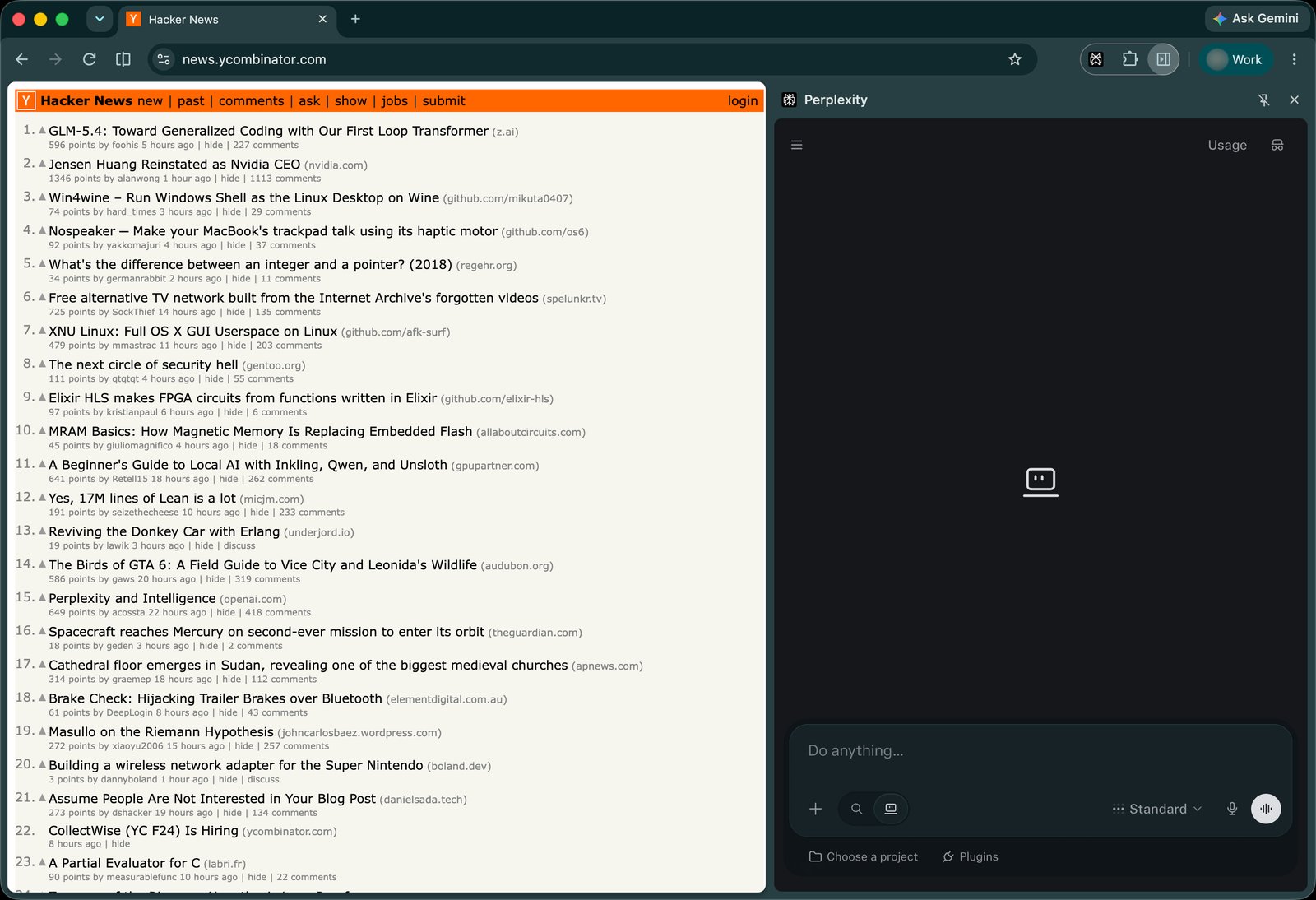
Figure 1 — The Perplexity icon in the browser toolbar, with the side panel open beside a page.
Ask a question about the page, or give Computer a task.
The side panel is optional. You don’t need to keep it open for a task you start in Perplexity on the web.
Try requests like these:
“Read this draft in Google Docs and suggest where the argument needs evidence."
"Check the project dashboard and draft an update on the tasks due this week."
"Put together a bikepacking kit for a three-day trip and leave it in my cart to review. Don’t check out.”
Computer uses the sign-ins in the browser profile you connected. If a website asks you to sign in, sign in yourself in that browser, then ask Computer to continue.
Approve or limit browser access
Computer uses your browser only during a task you started, and the extension doesn’t collect browsing data in the background.
By default, when Computer needs a site you haven’t allowed yet, it shows a request in the task that names the site, such as example.com. Allow for this task is selected by default. Choose an option, then select Confirm.
| Option | What it does |
|---|---|
| Allow for this task | Allows that site for the current task only. |
| Always allow this site | Allows the site and saves it under Site permissions. |
| Always allow all sites | Allows the site and changes your setting to Always allow. |
| Deny | Blocks that site for the current task. Computer continues the task without that site. |
Table 1 — Options in a browser access request.
To set a rule for one site:
Go to Settings → Browser use.
Enter the site’s domain under Site permissions.
Select Add.
Choose Always allow, Ask for permission, or Never allow for that site.
You can add up to 200 sites. A site’s rule takes priority over your general setting. If the general setting is Never allow, Computer can’t use any site in your browser and Site permissions isn’t shown.
To stop Computer mid-task, select the stop button in the task. Don’t rely on a settings change to stop a task that’s already running.
To remove the extension, use your browser’s extensions page.
Check or change browser use settings
Once you add the extension, Computer can use your browser on the web without any setup. Open these settings if Computer isn’t using your browser, to change how it asks for access, or to choose which browser the Mac or Windows app uses.
On the web
Open Perplexity on the web in the browser where you added the extension.
Go to Settings → Browser use.
Check that Control this browser shows Connected. If it shows Get extension and you’ve already added the extension, turn the extension on in this browser profile, then reload the page.
Select Always allow, Ask for permission, or Never allow under Let Computer use your local browsers.
The setting starts on Ask for permission. Computer then asks in the task the first time it needs a site, unless you’ve already allowed that site.
In the Perplexity app on Mac or Windows
Open Settings → Browser use. On Windows, Settings is under the menu icon in the sidebar.
Turn on Browser use.
Select your browser, such as Chrome, from the list of browsers.
Select Install extension if it appears.
Finish adding the extension if your browser opens to the Chrome Web Store.
How to verify it worked
In Settings → Browser use on the web, opened in the browser where you added the extension, Control this browser shows Connected.
In the Mac or Windows app, the browser you selected under Browser use shows Connected. If it shows Offline, open that browser and check that the extension is turned on.
During a task, Computer opens and uses tabs in your browser, on the sites you’re signed in to. You may see a tab group for the task.
Frequently asked questions
Is the extension the same as the Cloud Desktop?
No. With the extension, Computer works in your own browser with your existing sign-ins. The Cloud Desktop is a separate desktop with its own browser that runs in a secure cloud sandbox, so it doesn’t use the sign-ins in your browser.
Does the extension give Computer access to files or apps on my computer?
No. The extension lets Computer work only in your browser, not in files or installed apps on your computer outside the browser. To work with local files on Mac or Windows, or installed apps on Mac, see About the App.
Can I use the extension in Safari or Firefox?
No. The extension works in Chrome and other browsers that install extensions from the Chrome Web Store.
Why isn’t Computer using my browser?
Not every task needs a browser. Computer uses your browser when you ask it to, or when controlling a browser is the best way to complete the task.
If you expected Computer to use your browser, check that the extension is turned on in the browser profile you’re using and that Settings → Browser use shows Connected in that browser. Make sure neither Let Computer use your local browsers nor the site’s rule under Site permissions is set to Never allow. Keep that browser and the task open, then send your request again.
Why can’t I add the extension?
If your organization manages your browser, its policies may block new extensions. Ask your IT administrator to allow the Perplexity extension (ID pninphncmkphpjgfffammoenglghcjii).
Related articles
Need more help?
Contact us via Help > Contact Support. Include the task link if your question is about a specific Computer task.